> ## Documentation Index
> Fetch the complete documentation index at: https://superflow-claude-superflow-mcp-docs-distribution-b0cixg.mintlify.site/llms.txt
> Use this file to discover all available pages before exploring further.
# How to add a priority
## How to Add a Priority
In this article, you will learn how to add a priority. There are three (3) levels of priorities starting at P0, P1, and P2. There are a couple of ways to add priorities, either by creating a comment and adding a priority or adding priority to an existing comment. In this example, we will use the latter.
1. On the screen, find and click the **Comment** that you want to update.
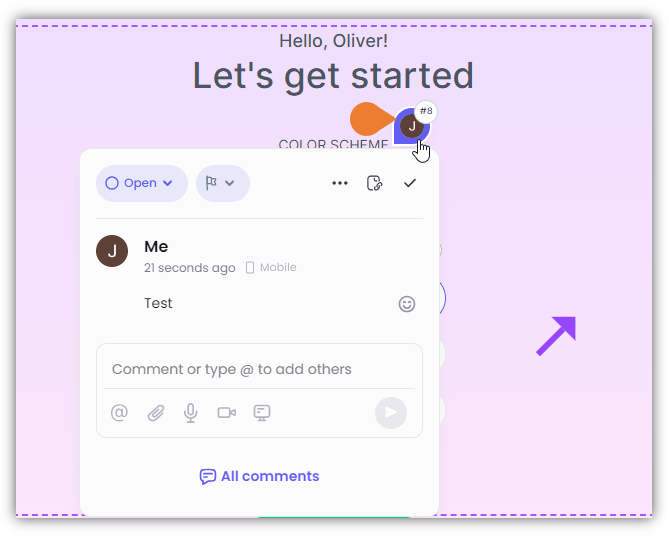 2. The **Comment Box** will appear, click the **Flag** icon beside the status.
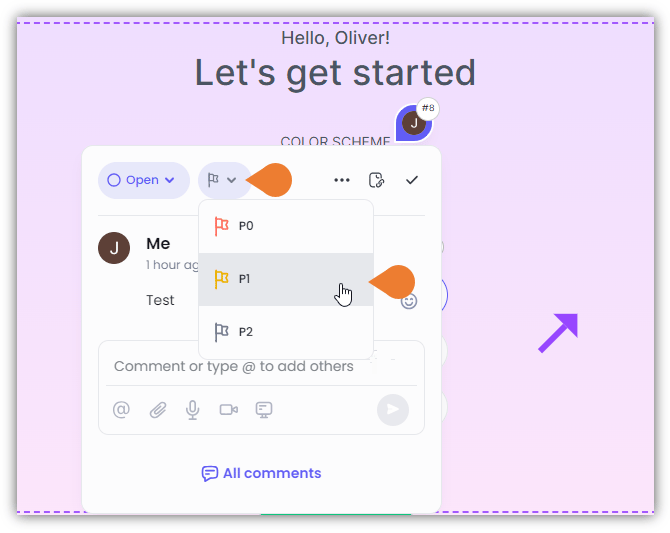 3. The **Priority** sub-menu will expand. Click the appropriate priority to select. After selecting the priority, the system will automatically apply the changes.