> ## Documentation Index
> Fetch the complete documentation index at: https://superflow-claude-superflow-mcp-docs-distribution-b0cixg.mintlify.site/llms.txt
> Use this file to discover all available pages before exploring further.

# How to record voice notes

## How to Record Voice Notes

In this article, you will learn how to record voice notes using the Superflow Toolbar.

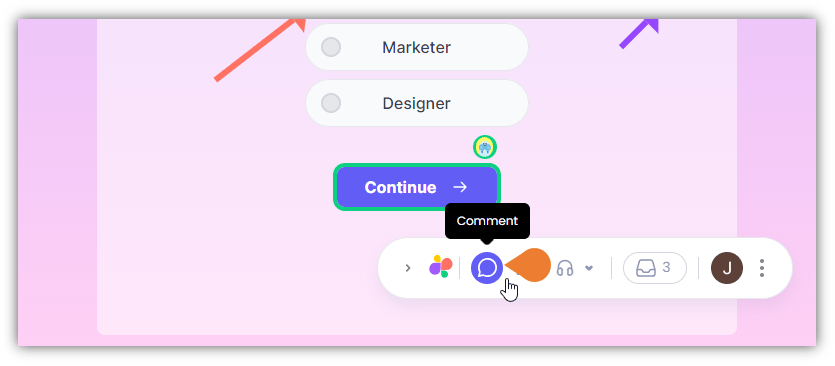
1. Find the **Superflow Toolbar** and click the **Comment** icon.
<Frame>
  <img src="https://mintcdn.com/superflow-claude-superflow-mcp-docs-distribution-b0cixg/KtJ8Km680nUWIDhy/images/how-to-guides/how-to-record-voice-notes/RVN1FINAL.png?fit=max&auto=format&n=KtJ8Km680nUWIDhy&q=85&s=f8bc17cb7b8b1097f67220d2e42a219c" alt="" width="835" height="366" data-path="images/how-to-guides/how-to-record-voice-notes/RVN1FINAL.png" />
</Frame>

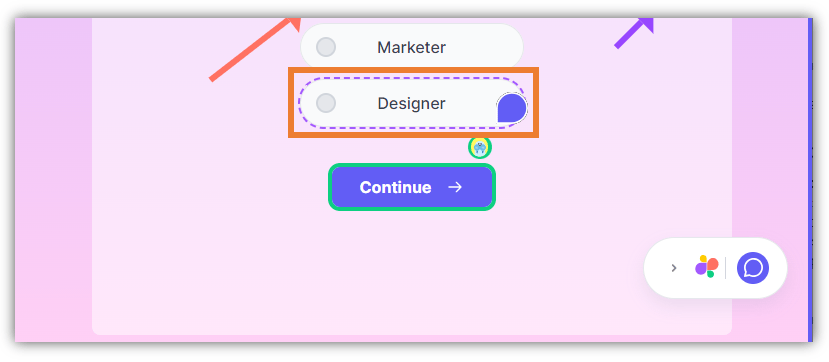
2. After clicking the icon, click the **Element** you want to comment on.

> **Note**: when you hover your cursor on an element, it will appear as a **Comment** icon which signifies that you selected the comment feature.
<Frame>
  <img src="https://mintcdn.com/superflow-claude-superflow-mcp-docs-distribution-b0cixg/KtJ8Km680nUWIDhy/images/how-to-guides/how-to-record-voice-notes/RVN2FINAL.png?fit=max&auto=format&n=KtJ8Km680nUWIDhy&q=85&s=674321b5ef112067769825bcb01a99da" alt="" width="829" height="362" data-path="images/how-to-guides/how-to-record-voice-notes/RVN2FINAL.png" />
</Frame>

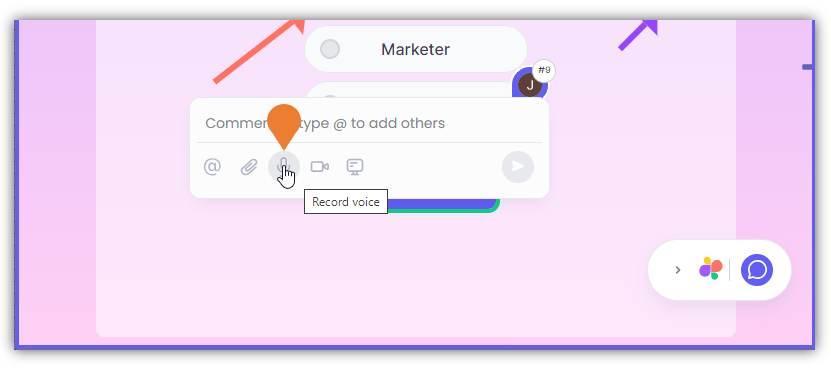
3. The **Comment Box** will appear, click the **Microphone** icon to select.
<Frame>
  <img src="https://mintcdn.com/superflow-claude-superflow-mcp-docs-distribution-b0cixg/KtJ8Km680nUWIDhy/images/how-to-guides/how-to-record-voice-notes/RVN3FINAL.png?fit=max&auto=format&n=KtJ8Km680nUWIDhy&q=85&s=160715c3c49738d1f593ea9ba18fda21" alt="" width="831" height="369" data-path="images/how-to-guides/how-to-record-voice-notes/RVN3FINAL.png" />
</Frame>

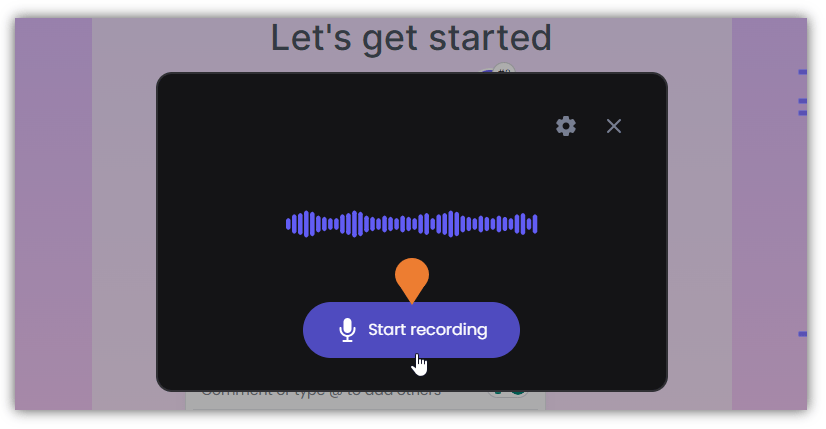
4. A **Recording** window will appear. Click the **Start Recording** button to begin recording the voice note.
<Frame>
  <img src="https://mintcdn.com/superflow-claude-superflow-mcp-docs-distribution-b0cixg/KtJ8Km680nUWIDhy/images/how-to-guides/how-to-record-voice-notes/RVN4INAL.png?fit=max&auto=format&n=KtJ8Km680nUWIDhy&q=85&s=66264d587a13ac7a7d475a6f4704e280" alt="" width="826" height="429" data-path="images/how-to-guides/how-to-record-voice-notes/RVN4INAL.png" />
</Frame>

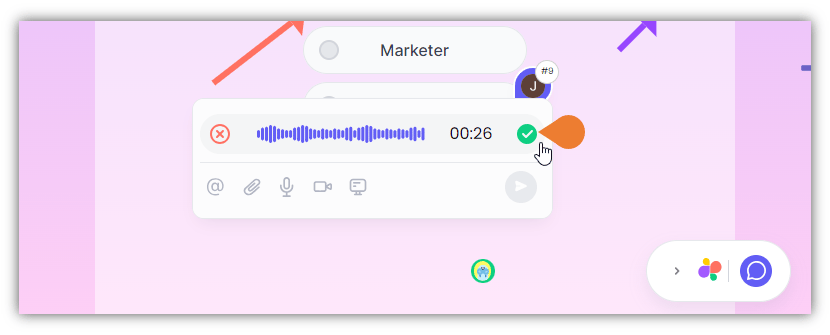
5. To complete your recording, click the **Green Check Mark**. This will stop the current recording.
<Frame>
  <img src="https://mintcdn.com/superflow-claude-superflow-mcp-docs-distribution-b0cixg/KtJ8Km680nUWIDhy/images/how-to-guides/how-to-record-voice-notes/RVN5FINAL.png?fit=max&auto=format&n=KtJ8Km680nUWIDhy&q=85&s=5e1926d79580eac4c557f0f7386feef1" alt="" width="830" height="335" data-path="images/how-to-guides/how-to-record-voice-notes/RVN5FINAL.png" />
</Frame>

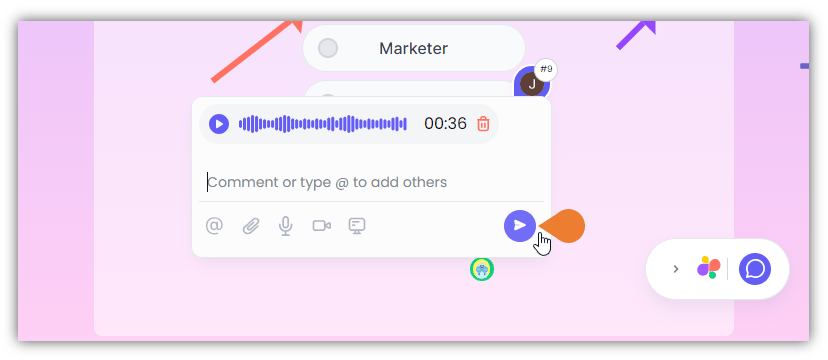
6. Click the **Post** button to save the voice note.
<Frame>
  <img src="https://mintcdn.com/superflow-claude-superflow-mcp-docs-distribution-b0cixg/KtJ8Km680nUWIDhy/images/how-to-guides/how-to-record-voice-notes/RVN6FINAL.png?fit=max&auto=format&n=KtJ8Km680nUWIDhy&q=85&s=9f552da0e3e3d72e98ae90bd0f30a38a" alt="" width="828" height="360" data-path="images/how-to-guides/how-to-record-voice-notes/RVN6FINAL.png" />
</Frame>
